
Introducing Cointacted Social Terminal
 Cointacted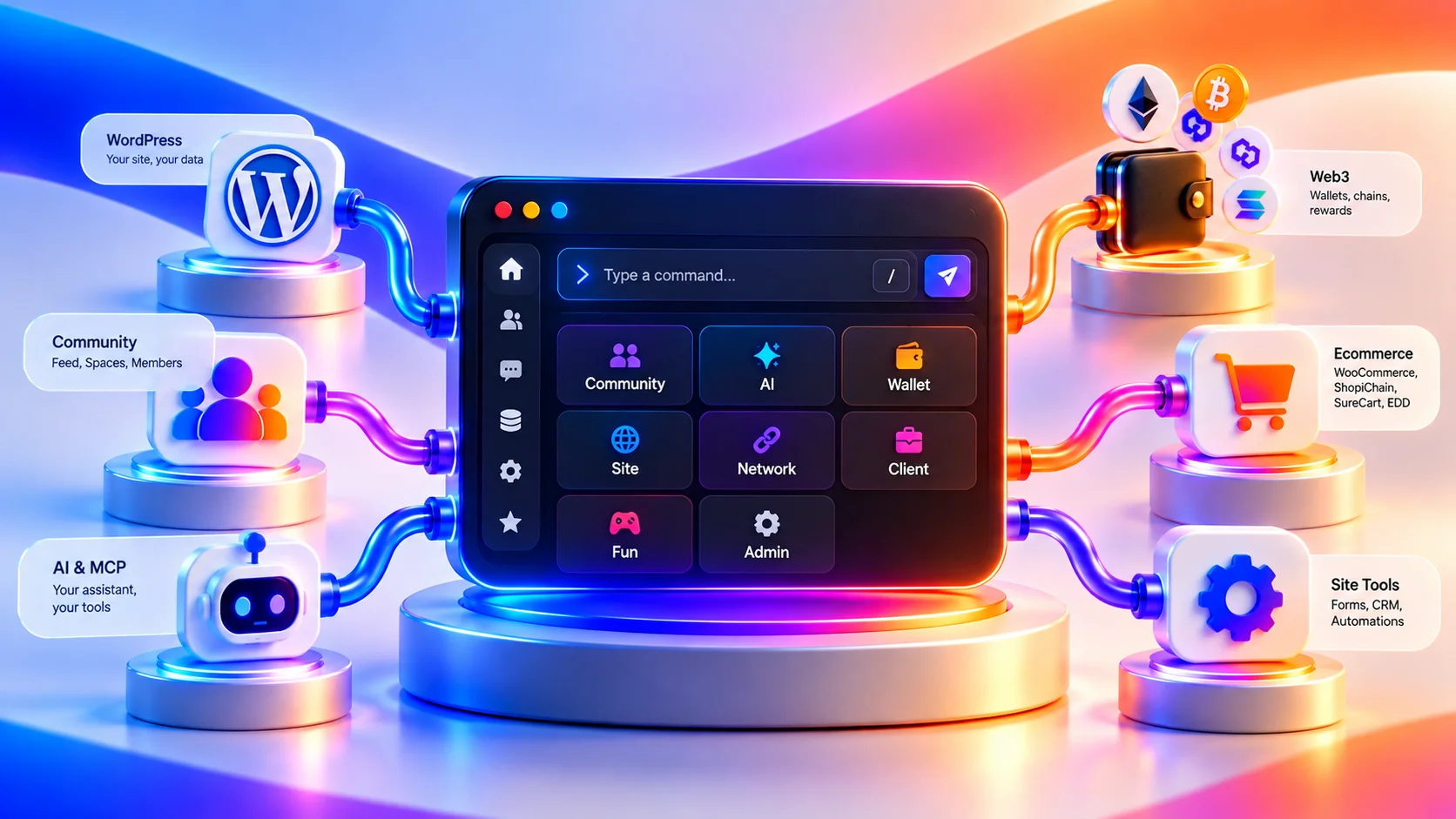
The web keeps adding tools. Cointacted brings them together.
Cointacted Social Terminal is a fast, command-driven interface for navigating a connected digital world. It gives people one focused place to discover what is available, find what they need, and move between experiences without digging through layers of menus.
It is not a replacement for WordPress or the interfaces people already understand. It is a new layer on top: compact when you want speed, discoverable when you need guidance, and modular enough to grow with the site around it.
One interface for connected experiences
A social terminal should feel useful before it feels technical. Cointacted is designed around clear commands, helpful descriptions, search, and guided discovery. Visitors can open the terminal, type help, and immediately understand what they can do next.
That simple interaction creates a consistent entry point across a larger ecosystem. Search, identity, communities, AI features, rewards, and blockchain tools can connect through focused add-ons while the main terminal stays lean.
Familiar interaction, modular power
Cointacted separates the core experience from optional capabilities. That architecture matters: site owners can enable the tools their audience actually needs without turning the interface into an overloaded dashboard.
- Discover commands quickly. Built-in help organizes available actions and makes unfamiliar features approachable.
- Move with less friction. Common destinations and tools can be reached from a consistent command surface.
- Extend without bloating the core. Specialized integrations remain modular and independently maintainable.
- Keep the experience coherent. Shared design, permissions, and interaction patterns make separate capabilities feel like one product.
Built for WordPress, designed to feel instant
Cointacted lives naturally inside WordPress, but the experience is shaped like a modern application. The terminal adapts across screen sizes, supports light and dark presentation, and works with the surrounding site instead of fighting it.
Performance is part of the product design. The interface is loaded only where it is needed, interactions stay focused, and integrations are kept behind clear boundaries. The result is a terminal that can remain responsive as the ecosystem expands.
Designed around people, not command syntax
The word “terminal” can sound exclusive. Cointacted takes the opposite approach. Commands are shortcuts, not a test. Searchable help, plain-language descriptions, examples, and visual feedback make the experience usable even for someone opening it for the first time.
For experienced users, the same interface becomes a faster route through the site. For newcomers, it becomes a map.
Cointacted turns commands into a social navigation layer: one place to discover, connect, and act.
A foundation for what comes next
Cointacted Social Terminal is the foundation of a broader, modular ecosystem. Optional add-ons can contribute focused capabilities—from enhanced search and community integrations to gamification, AI, wallet experiences, and operational tooling—without making every installation carry every feature.
That is the direction: a product that stays simple at the surface, powerful underneath, and open to new ways of connecting people with the tools and communities they care about.
Start with one command
Open the Social Terminal and type help. Explore what is already available, then come back as the Cointacted ecosystem continues to grow.
A practical first session
You can explore the terminal without connecting a wallet or buying an add-on. Open the Terminal page, wait for its command input, and enter help. The result is a catalog of commands available to your current account. Choose a command entry to read its description, syntax and examples before running it.
Try about to learn about the terminal, then clear to clear the visible output. Clearing output does not delete your account or change a wallet. For a narrower catalog, try help search community; the results depend on the add-ons and permissions enabled on the site. An empty result means that no matching command is available to you, rather than that every integration is included in the core.
A command catalog and permission checks serve different purposes. The catalog helps you discover tools; the server also checks access when a command is executed. If a command is unavailable, sign in only when the feature requires an account, or ask the site administrator whether its owning add-on is enabled. Do not grant administrator access simply to make an optional command appear.
Install the core on your own WordPress site
Start on a staging site with a current backup. Social Terminal’s documented requirements are WordPress 6.5 or newer and PHP 7.4 or newer; use HTTPS for a public installation and protected account features. Install the free core through Plugins → Add Plugin or upload the official Cointacted ZIP. The WordPress.org distribution provides the local terminal and intentionally omits Cointacted’s remote add-on installer.
- Activate Social Terminal and open Cointacted → Settings → General.
- Check the canonical Terminal page. Use the repair action if the managed page has been removed or emptied, then add the page to your site’s menu.
- Open that page while signed out and run
help. This checks what a visitor actually receives, rather than relying on an administrator’s command catalog. - Review the Commands and Security tabs. Enable only the commands and guest access your site needs.
- Add one integration at a time. Read its requirements and settings, activate it, and compare the guest and member catalogs again.
A second manually embedded terminal is not needed when using the managed page. If you use Winkdom or a supported community integration, its adapter connects the same terminal to that site's navigation. Test a direct page load first, then navigation from another page, refresh, and browser Back and Forward.
Choose add-ons around a task
For community discovery, start with the adapter for the community software actually installed on your site. For AI, configure the AI add-on and its provider limits. For wallet features, choose a supported wallet adapter and review the network and signing prompts. A wallet is optional for ordinary terminal use; never enter a seed phrase or private key into a command or support message.
Free functionality, account connection and Pro access are distinct. Depending on the distribution, an add-on can be installed from a verified ZIP or the Add-ons Hub. A connected account or license can authorize protected delivery and eligible Pro features, but it does not grant visitors broader WordPress permissions. Review the exact product tier and dependencies instead of assuming that installing the core enables every add-on.
Check the result before inviting members
Use a separate member account to test an allowed command and a denied command. Verify that restricted actions remain unavailable, that the Terminal page opens directly, and that it still works after refreshing or navigating back from another page. If the interface appears twice, check for a duplicated shortcode or manual embed. If a command is missing, check its owning add-on, dependencies and access policy before changing roles.
Follow the installation guide for the full setup and troubleshooting steps, browse the documentation for individual products, and use Contact when you can reproduce a problem. Include the affected product and what you expected to happen, without passwords, tokens or wallet secrets.
Related stories

Build a Web3-ready WordPress community without making every member use a wallet
 Cointacted
Start with accounts, articles and community Spaces, then add optional wallets and independently governed contribution rewards when they serve a real member need.
Cointacted Social Terminal: one command hub for your WordPress community
CointactedDiscover community, Search, optional AI and wallet tools from one WordPress command hub, starting with help rather than a command list to memorize.

Web3 on WordPress: accounts, wallets and community rewards with Cointacted
CointactedA product-focused explanation of Cointacted's modular wallet, account, token and community-reward foundations without making wallets mandatory.
0 responses